Team ManagementBusiness PlanUpdated October 5, 2026
Inviting team members with Owner, Admin, and Member roles
Collaborate with team members on the Business plan with 3 included seats and clear roles.
Team seats are available on the Business plan only, with 3 seats included. Free and Pro have 1 user.
Role permissions
- Owner: Everything, including closing the account.
- Admin: Everything, including billing, payment gateways, email and company settings, and the team. Cannot close the account.
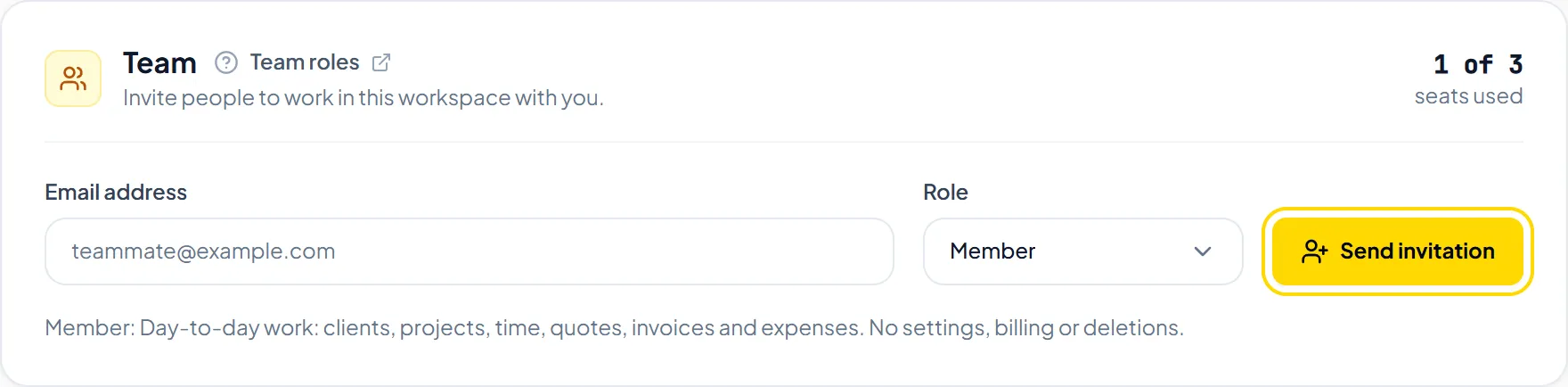
- Member: Day-to-day work: clients, projects, time, quotes, invoices and expenses. No settings, billing or deletions.
How to invite a team member
- Open Settings and select the Team tab.
- Enter the Email address, pick Member or Admin under Role, and click Send invitation.
- The person receives an email invitation to join your workspace.
Important NoteMembers are not assigned to individual projects. If your workspace moves from Business to Free or Pro, non-owner members lose access; nothing is deleted.
Was this guide missing something or do you need further clarification?Contact Support
Related Guides
Sending emails from your own domain with Resend or Brevo
Connect your own Resend or Brevo account on Business to send invoices from your domain.
Read guide
Comparing Free, Pro, and Business plan allowances
Learn the differences between Free, Pro, and Business plans and how monthly resets work.
Read guide
Installing and using the Windows desktop time tracker
Download Invollo Tracker for Windows 10/11, sign in, and track time against your projects.
Read guide
Ready to streamline your invoicing?
Start on Invollo’s free plan with no credit card required. Manage invoices, time tracking, and client billing in one place.
Free forever plan · No credit card required · 0% of your client payments