For remote contractors & distributed work
Remote work your clients can see, billed from the hours you track
When you and your client never share an office, trust comes from transparency. Invollo pairs time tracking, with optional screenshots that are disclosed up front, with a client work diary and invoices built directly from tracked hours.
Desktop tracker for Windows 10/11 · clients see screenshots only if the workspace allows it.
The problem
Distance turns every invoice into a question of trust
When clients and remote contractors never meet in person, billing disputes arise over invisible hours and vague timesheets. Invollo replaces uncertainty with transparency: lightweight time tracking, optional disclosed screenshots, a transparent client work diary, and invoices generated directly from tracked project time.
How it works
How transparent time tracking works in Invollo
Agree the rules
Agree with your client on tracking intervals and whether screenshots are enabled.
Track on Windows, the web or Chrome
Run the native Windows desktop tracker, web timer, or Chrome extension while working.
Share the work diary
Let clients log into their portal to view tracked hours and permitted screenshots.
Invoice the tracked hours
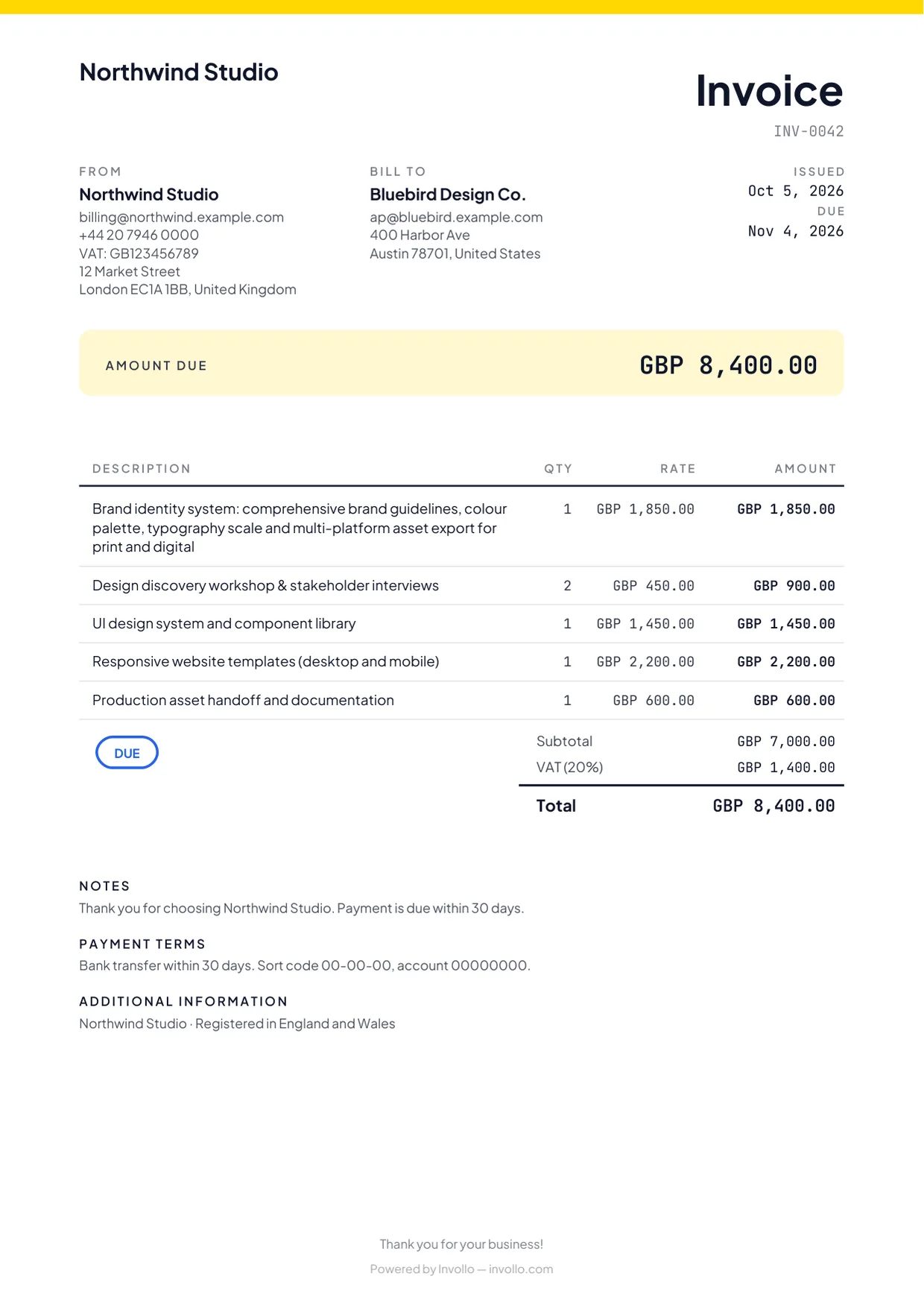
Convert unbilled project hours into itemised invoice lines with direct payment links.
What you get
Transparency features for remote work
Windows desktop tracker
Native desktop timer for Windows 10 and 11 that tracks time while you work in any app.
Optional, disclosed screenshots
Optional full-screen captures at workspace intervals (3 to 15 minutes) with zero hidden surveillance.
Workspace-controlled interval
Workspaces control capture frequency to match agreed contractual terms.
Client work diary
Clients review tracked hours and permitted screenshots directly in their client portal.
Hours straight to invoices
Eliminate manual timesheet exports by pulling tracked hours directly into invoice lines.
Cross-border billing
Invoice international clients in 26 currencies with direct payments to Stripe or PayPal.
Screenshots, in plain words
What gets captured, and who sees it
- The desktop tracker takes periodic screenshots of the full screen while a timer is running with screenshots switched on.
- The interval is set by the workspace, every 3, 5, 10 or 15 minutes, and applies to everyone tracking in that workspace.
- The workspace can review the screenshots. The client sees them only if the workspace allows it, in the work diary of their portal.
- Tell anyone who tracks time in your workspace that screenshots are taken, and agree the rules before work starts. Transparency only builds trust when everyone knows the rules.
The fine print, up front
Honest answers for remote setups
Web, Windows and Chrome
Invollo runs in the browser, with a Windows desktop tracker and a Chrome extension timer.
0% of your client payments
Clients pay you directly into your bank, Stripe or PayPal account. Invollo never holds the money and takes 0%; your bank's or payment provider's own fees still apply.
Your workspace stays yours
Workspaces are isolated at the database level, passwords require at least 12 characters, and sign-in forms block bots.
Seats, stated plainly
Free and Pro are for one user; Business adds team seats (the pricing page shows how many seats are included).
FAQ
Questions about remote time tracking
- Does Invollo take screenshots while I work?
- Only when a timer runs with screenshots enabled, capturing your screen at workspace intervals.
- Can my client see the screenshots?
- Clients only see screenshots in their portal work diary if the workspace explicitly allows it.
- Can several people track time in one workspace?
- Yes. Business adds team seats with roles (the pricing page shows how many seats are included); Free and Pro are for one user.
- How do tracked hours get invoiced?
- Unbilled hours convert into decimal quantity × rate lines on branded invoices.
Related
Make your remote work easy to trust
Create a free account, agree the screenshot rules with your client, and send your first invoice from tracked hours.