Time tracking
Time tracking with screenshots that turns hours into invoices
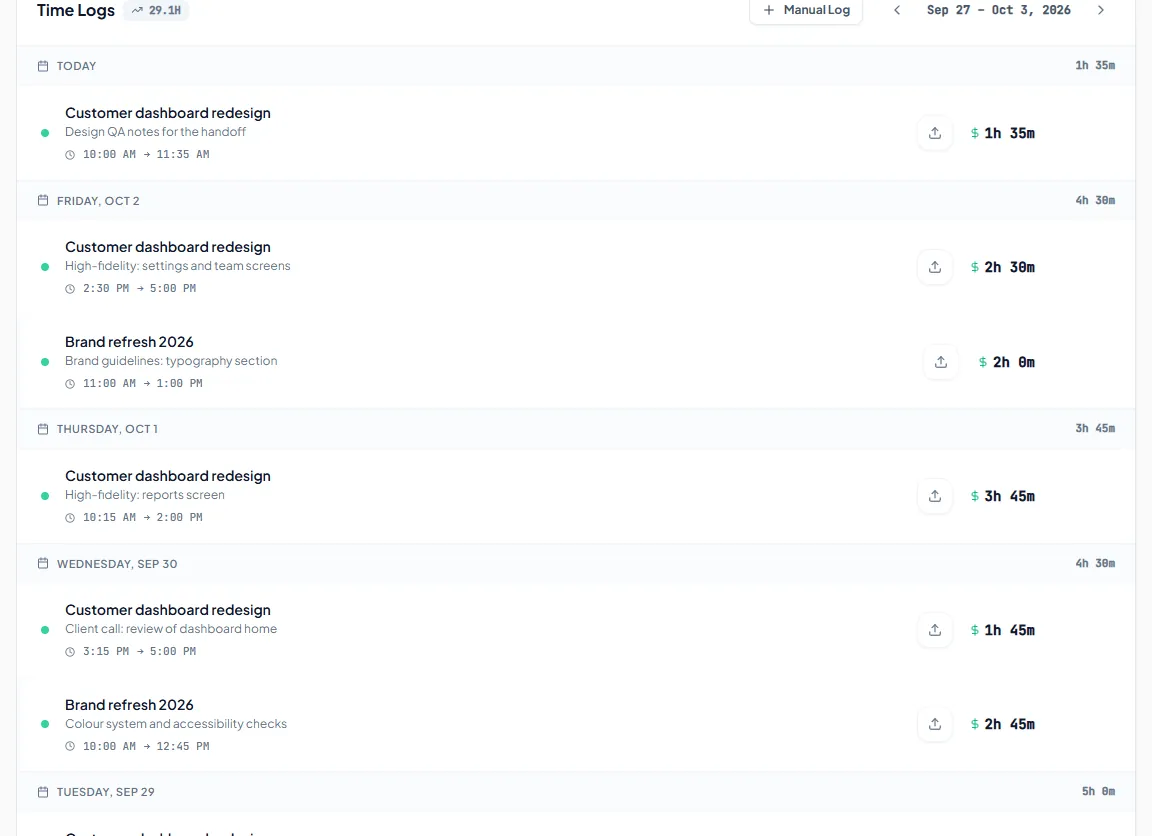
Run a timer in the browser, in the Chrome extension or in the Invollo desktop tracker for Windows. The desktop tracker can take periodic screenshots as proof of work, and every tracked hour can go straight onto an invoice.
Desktop tracker for Windows 10/11 · screenshots are disclosed below.
The problem
Hours you forget to log are hours you don’t get paid for
Unlogged calls, untracked fixes, and lost spreadsheet hours quietly eat your earnings. At the same time, hourly clients hesitate when billing lacks clear proof. Invollo solves both with lightweight timers, optional proof-of-work screenshots, and direct conversion from logged time into invoices.
How it works
How time tracking works in Invollo
Set up the project
Create an hourly or fixed-price client project with your billing rate.
Start a timer anywhere
Track time from the Windows desktop app, the browser timer, or the Chrome extension.
Review your time
Review logged entries and captured screenshots in your workspace work diary.
Invoice the hours
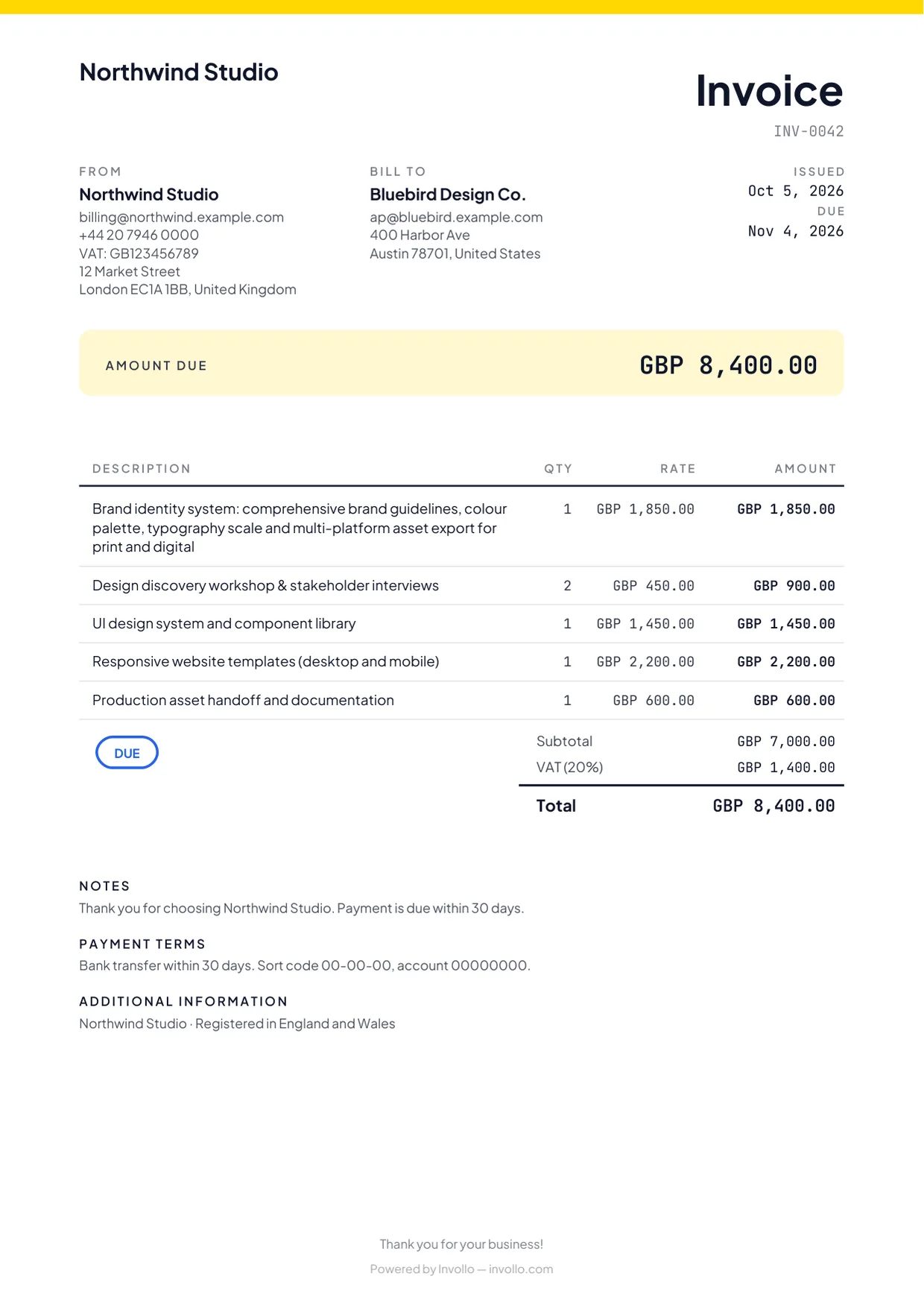
Turn unbilled project time into decimal invoice lines.
What you get
Three ways to track, one set of hours
Desktop tracker for Windows
A native desktop application for Windows 10 and 11 that tracks time in any active software.
Web timer
Start and stop project timers directly from your browser on any operating system.
Chrome extension
A handy browser toolbar timer for quick logging without keeping the main app open.
Optional proof-of-work screenshots
Periodic full-screen captures at workspace-set intervals (3 to 15 minutes), reviewable by the workspace and, if allowed, the client.
Tracked time to invoice lines
Convert unbilled hours into quantity × rate lines on branded client invoices.
Plain-language disclosure
Yes, the tracker takes screenshots. Here is exactly how.
- The desktop tracker captures your full screen while a timer runs with screenshots enabled.
- Workspaces set the capture interval: every 3, 5, 10, or 15 minutes (5 by default).
- Screenshots upload to workspace storage; clients only see them if the workspace permits.
- If you track time in someone else's workspace, they set these rules. Close private documents while tracking.
Get the desktop tracker
For Windows 10 and 11. The download is a .zip file containing the installer; sign in with your Invollo account after installing.
Download for Windows (.zip)Free to use on every plan, including Free.
The fine print, up front
What you can count on
Web, Windows and Chrome
Invollo runs in the browser, with a Windows desktop tracker and a Chrome extension timer.
A free plan that never expires
The Free plan costs nothing, has no trial clock, and never expires. Upgrade only when you need more.
0% of your client payments
Clients pay you directly into your bank, Stripe or PayPal account. Invollo never holds the money and takes 0%; your bank's or payment provider's own fees still apply.
Your workspace stays yours
Workspaces are isolated at the database level, passwords require at least 12 characters, and sign-in forms block bots.
FAQ
Time tracking questions
- Does the Invollo time tracker take screenshots?
- Yes, when switched on for a session, capturing full-screen proof at workspace intervals (3 to 15 minutes).
- Who can see my screenshots?
- Your workspace team can review them, and clients can view them only if the workspace explicitly permits.
- Is the desktop tracker free?
- Yes. Time tracking and the Windows desktop tracker are included on the Free plan without time limits.
- How do tracked hours become an invoice?
- Select unbilled hours when creating an invoice; each entry converts to decimal quantity × rate lines automatically.
Related
Track your next hour, invoice it the same day
Create a free account, download the Windows tracker or use the web timer, and invoice your tracked time.