Recurring Invoices & RetainersPro & Business PlanUpdated October 5, 2026
How retainers and excess hours work
Bill a fixed retainer fee with included hours, and add extra tracked hours to the next invoice or only show them.
A retainer bills a fixed fee every period and includes an agreed number of hours. Hours tracked beyond that can be billed on the next invoice.
Setting up a retainer
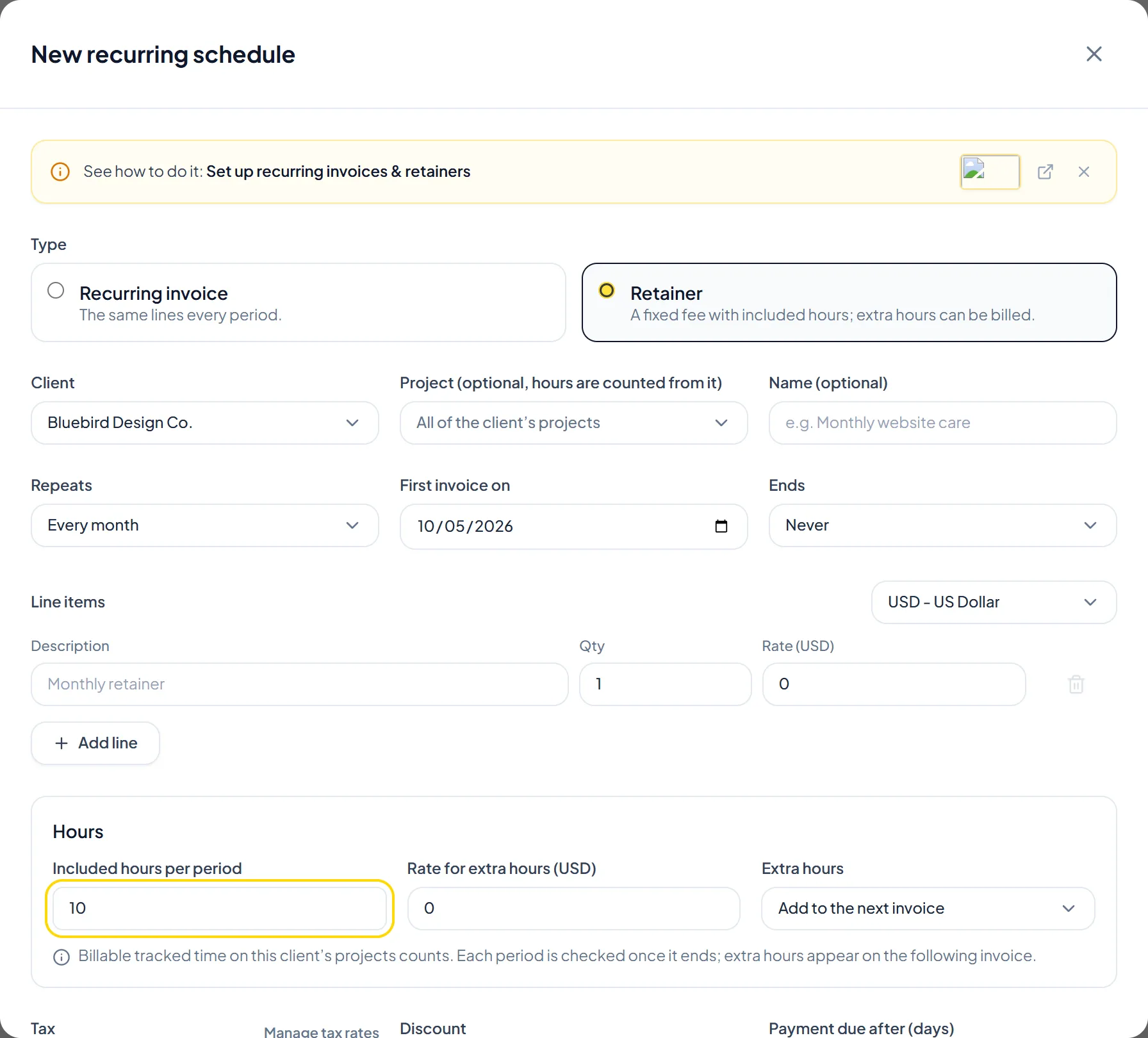
- Click Recurring in the sidebar, click New schedule, and under Type choose Retainer.
- Select the Client and, optionally, a Project. Hours are counted from that project, or from all of the client's projects if you leave it empty.
- Put the retainer fee in the line items (for example "Monthly retainer").
- Set Included hours per period and the Rate for extra hours.
- Under Extra hours, choose Add to the next invoice or Only show them.
- Track billable time as usual with the web timer, desktop tracker, or Chrome extension.
Important NoteOnly billable tracked time counts. Each period is checked once it ends, and extra hours appear on the following invoice.
Was this guide missing something or do you need further clarification?Contact Support
Related Guides
Setting up a recurring invoice schedule
Create invoices automatically every week, 2 weeks, month, 3 months, or year on the Pro and Business plans.
Read guide
Pausing, resuming, or skipping recurring invoices
Pause or resume a recurring schedule, skip the next invoice, or create the next invoice now as a draft.
Read guide
Billing tracked hours on an invoice
Pick an hourly project on an invoice to add one line with the project's logged hours at its hourly rate.
Read guide
Ready to streamline your invoicing?
Start on Invollo’s free plan with no credit card required. Manage invoices, time tracking, and client billing in one place.
Free forever plan · No credit card required · 0% of your client payments