Recurring Invoices & RetainersPro & Business PlanUpdated October 5, 2026
Setting up a recurring invoice schedule
Create invoices automatically every week, 2 weeks, month, 3 months, or year on the Pro and Business plans.
Recurring invoices are created automatically on a schedule for ongoing client work or monthly services. Available on Pro and Business plans.
How to create a recurring schedule
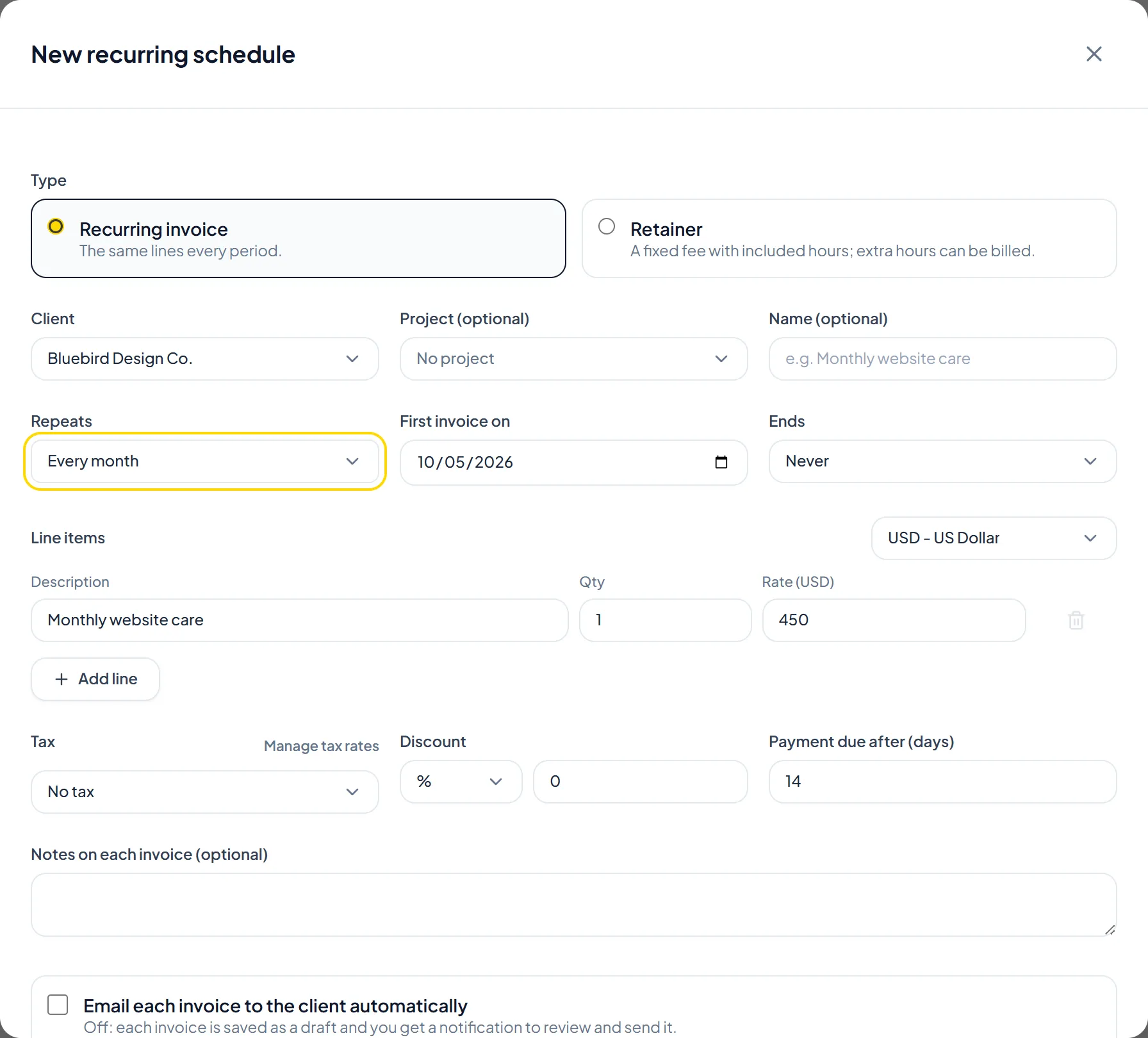
- Click Recurring in the sidebar (or on the Invoices page), then click New schedule.

- Under Type, choose Recurring invoice, then select the Client and, optionally, a Project and a Name.
- Under Repeats, choose Every week, Every 2 weeks, Every month, Every 3 months or Every year, and set First invoice on.
- Under Ends, choose Never, On a date, or After a number of invoices.
- Add your line items, then set the tax rate, Discount and Payment due after (days). The currency starts as the client's currency; you can change it in the Currency menu above the line items.
- Tick Email each invoice to the client automatically, or leave it off to have each invoice saved as a draft with a notification to review and send it.
- Click Create schedule.
Helpful TipIf you want to review each invoice before it goes out, leave the automatic email off. Each invoice is then saved as a draft for you to check and send.
Was this guide missing something or do you need further clarification?Contact Support
Related Guides
How retainers and excess hours work
Bill a fixed retainer fee with included hours, and add extra tracked hours to the next invoice or only show them.
Read guide
Pausing, resuming, or skipping recurring invoices
Pause or resume a recurring schedule, skip the next invoice, or create the next invoice now as a draft.
Read guide
How recurring payments and emails work
Learn how clients pay recurring invoices and how automated invoice notification emails function.
Read guide
Ready to streamline your invoicing?
Start on Invollo’s free plan with no credit card required. Manage invoices, time tracking, and client billing in one place.
Free forever plan · No credit card required · 0% of your client payments