Time Tracking & Desktop AppUpdated October 5, 2026
Tracking time with the Invollo Chrome extension
Install the Invollo Chrome extension from its ZIP and track time from your browser toolbar.
The Invollo Chrome extension is a timer in your browser toolbar, so you can start and stop project timers without leaving your tabs.
Installing the extension
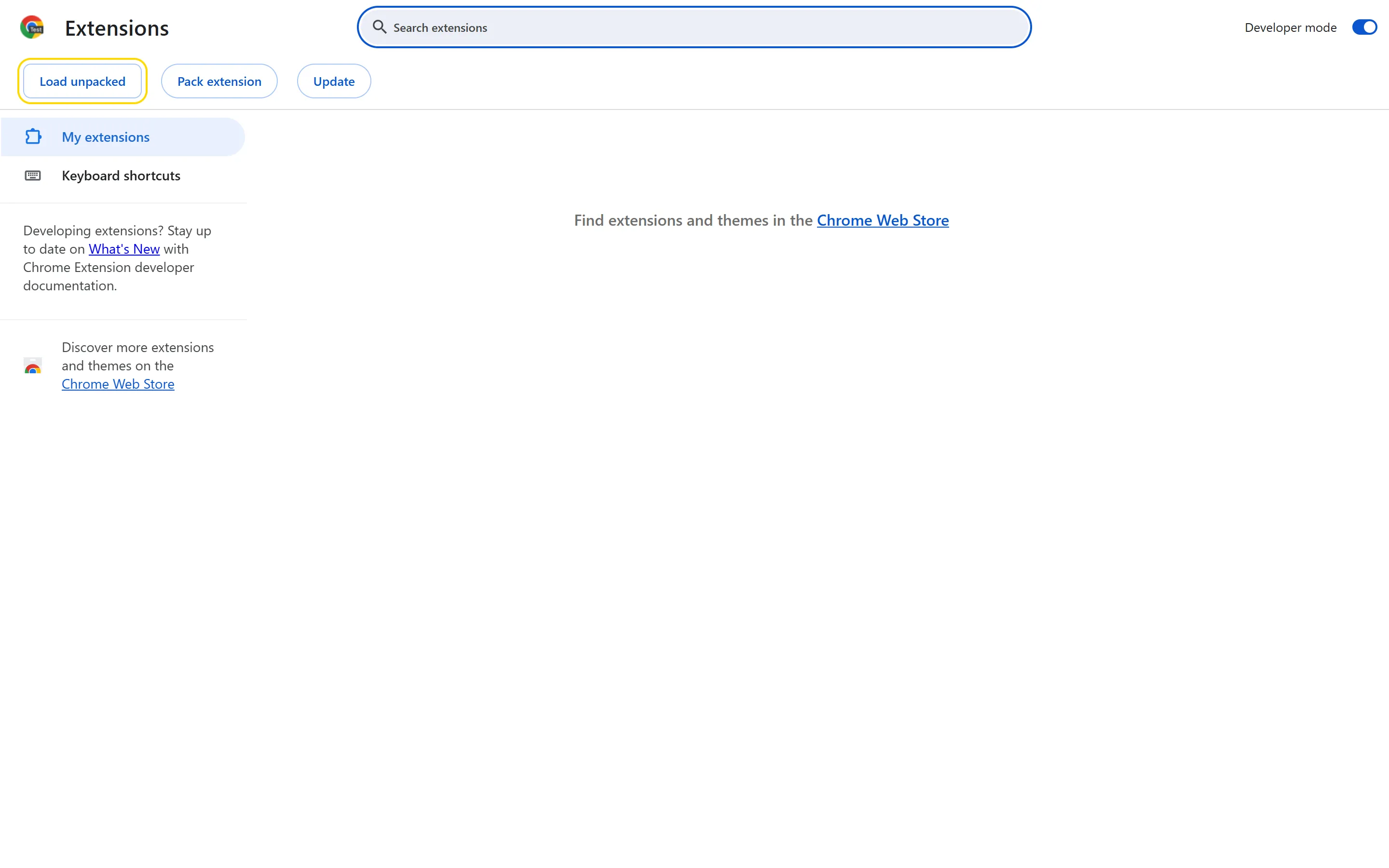
- The extension is not in the Chrome Web Store. On the Time Tracker page in the app, choose Extension and click Download ZIP.
- Extract the ZIP, open chrome://extensions in Chrome, and turn on Developer mode.
- Click Load unpacked and select the extracted folder.
Using the browser timer
- Click the Invollo icon in your extension bar and click Sign In with your Invollo email and password.
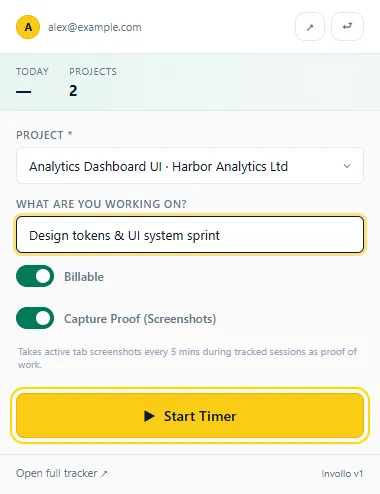
- Pick one of your active hourly projects, optionally describe what you are working on, then click Start Timer.
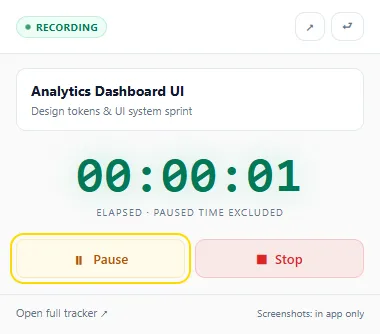
- Your time is saved to your Invollo time logs.
Important NoteWith Capture Proof (Screenshots) on, the extension can take periodic screenshots of the active browser tab. The Windows desktop tracker captures your screen instead.
Was this guide missing something or do you need further clarification?Contact Support
Related Guides
Installing and using the Windows desktop time tracker
Download Invollo Tracker for Windows 10/11, sign in, and track time against your projects.
Read guide
Billing tracked hours on an invoice
Pick an hourly project on an invoice to add one line with the project's logged hours at its hourly rate.
Read guide
Creating projects and deliverables
Set up hourly or fixed-price client projects, then add deliverables once the project is created.
Read guide
Ready to streamline your invoicing?
Start on Invollo’s free plan with no credit card required. Manage invoices, time tracking, and client billing in one place.
Free forever plan · No credit card required · 0% of your client payments