Settings, PDF & BrandingUpdated October 5, 2026
Customizing invoice PDF design, logo, and colors
Choose one of six PDF templates, your logo, accent color and font, and set payment terms, footer notes and a thank-you message.
Invollo lets you style your PDFs so your documents match your brand. Every PDF, including the ones attached to emails, uses the same design.
Templates
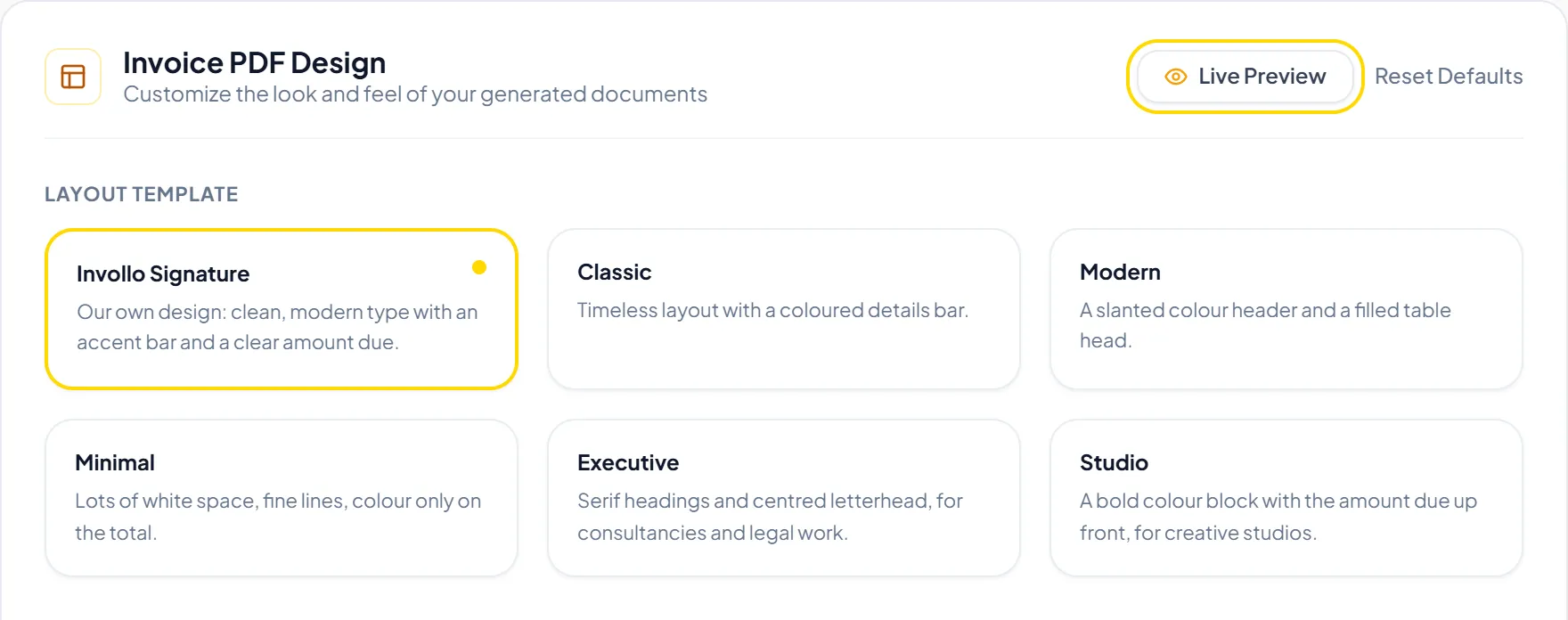
- Invollo Signature (the default): clean, modern type with an accent bar and the amount due up front. Its colors and fonts are fixed.
- Classic: a timeless layout with a colored details bar.
- Modern: a slanted color header and a filled table head.
- Minimal: lots of white space, fine lines, color only on the total.
- Executive: serif headings and a centered letterhead, for consultancies and legal work.
- Studio: a bold color block with the amount due up front, for creative studios.
PDF styling options
- Go to Settings and select the PDF Design tab.
- Choose a Layout Template. Click Live Preview to see any template with your details before you save. Click Upload Logo if you want a separate PDF logo (otherwise your company logo is used), then pick the Logo Display Size.
- For templates other than Invollo Signature, pick a Primary Accent Color and Text Color from the presets or enter a hex code, and choose the Typography (Main Font).
- Under Footer & Terms, fill in Global Payment Terms, Global Footer Notes and the Thank You Message.
- Optionally tick Include Signature in PDF so accepted quotations include the client's signature.
- Click Apply Design Settings.
Important NoteTemplates, colors, fonts and the thank-you message are part of the Pro and Business plans. On Free, PDFs use Invollo Signature with your logo, business details, payment terms and notes. If you move to Free later, your saved design is kept and comes back when you upgrade.
Important NoteThe "Powered by Invollo" footer badge is displayed on Free and Pro plans. Upgrading to Business removes the badge from PDFs, emails, and client invoice links.
Was this guide missing something or do you need further clarification?Contact Support
Related Guides
Setting up your business profile and workspace
Add your company or legal name, logo, business address, and contact details in Invollo.
Read guide
Creating and sending your first invoice
Step-by-step guide to choosing a client, adding line items, saving a draft, and emailing an invoice.
Read guide
Comparing Free, Pro, and Business plan allowances
Learn the differences between Free, Pro, and Business plans and how monthly resets work.
Read guide
Ready to streamline your invoicing?
Start on Invollo’s free plan with no credit card required. Manage invoices, time tracking, and client billing in one place.
Free forever plan · No credit card required · 0% of your client payments