Invoices & InvoicingUpdated October 5, 2026
Creating and sending your first invoice
Step-by-step guide to choosing a client, adding line items, saving a draft, and emailing an invoice.
Invollo lets you create professional invoices for your clients. Invoices can be emailed to your client, who opens them through a secure link to view and pay.
How to create and send an invoice
- Go to Invoices in the sidebar and click New Invoice.
- Select the client (add new clients first under Clients). The invoice uses the client's currency, which you set on the client.
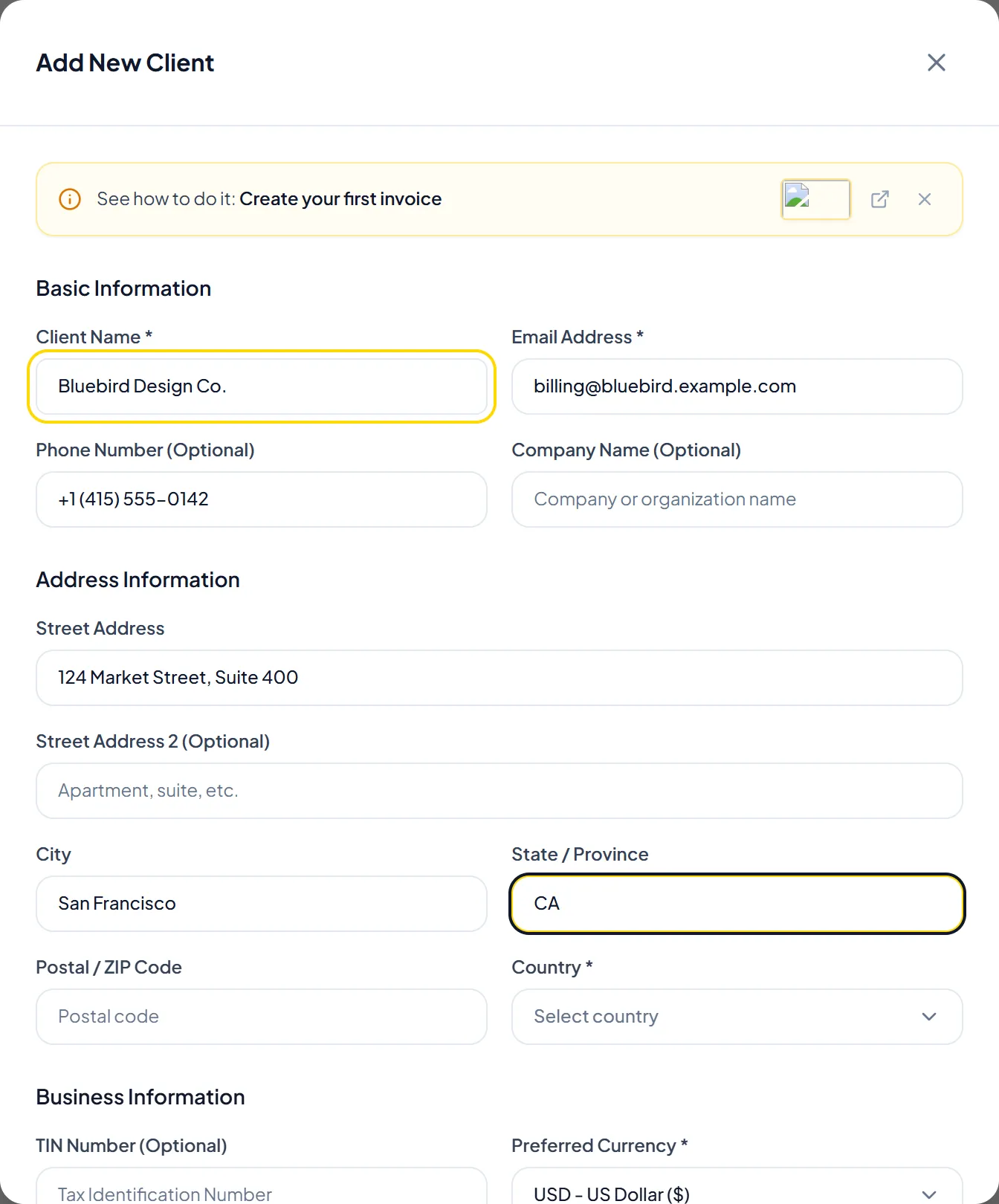
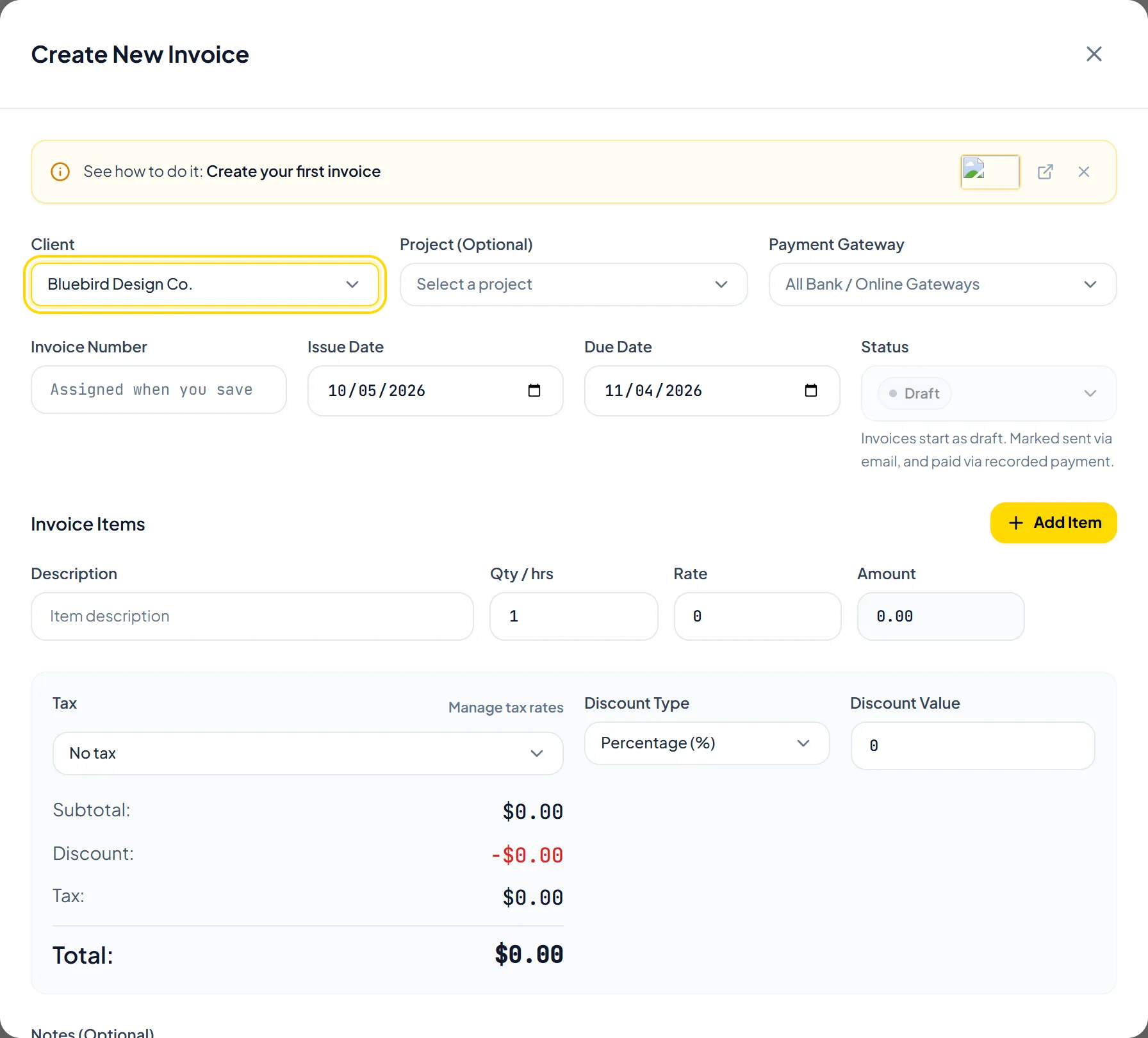
- Choose the Issue Date and Due Date.
- Add one or more line items with Add Item: a description, Qty / hrs and Rate.
- Choose the invoice's tax rate below the items, and add a discount if needed.
- Review the subtotal, tax and total, then click Create Invoice to save a draft.
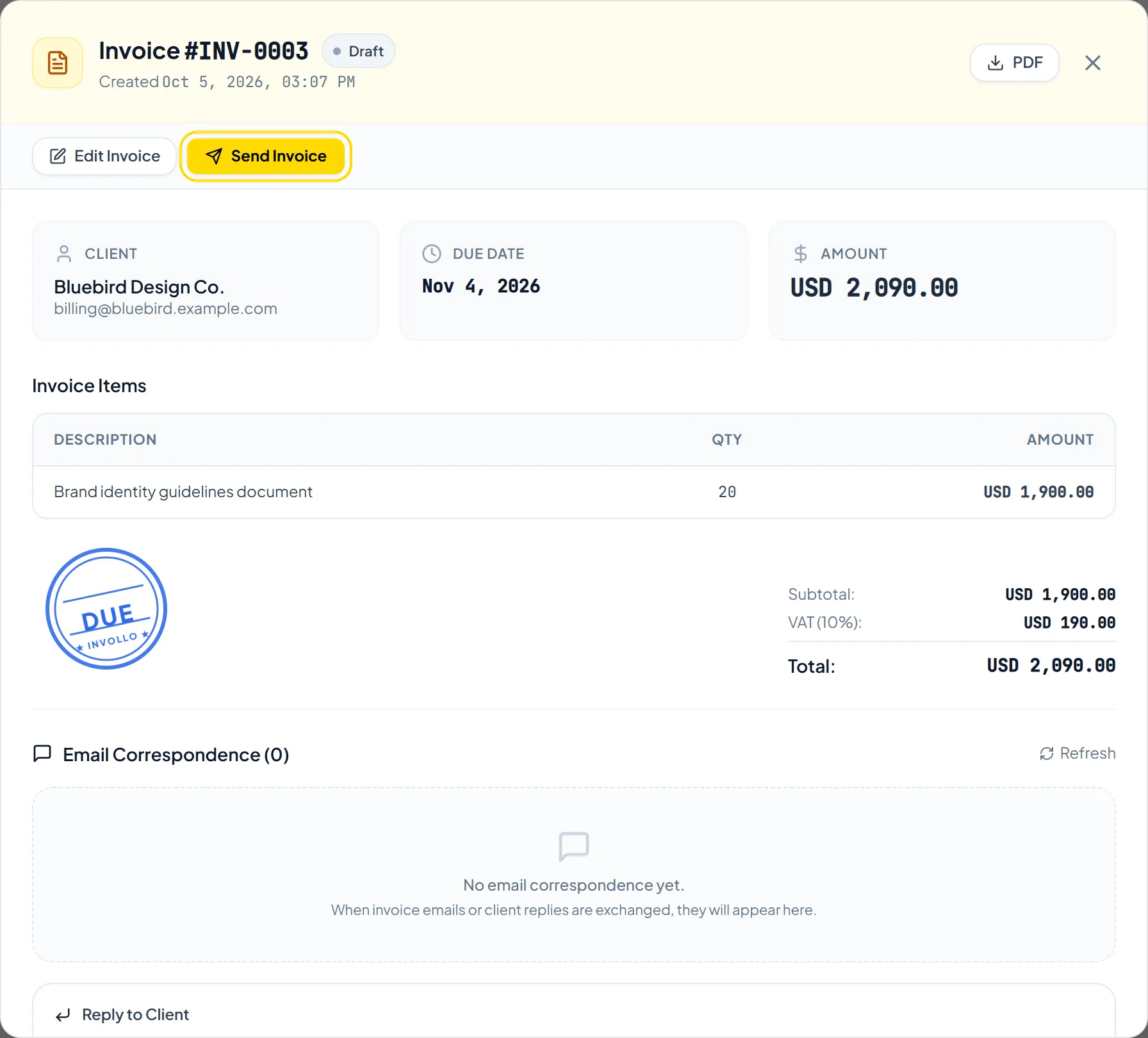
- Open the invoice and click Send Invoice to email it to your client.
Helpful TipOnce an invoice has a payment link, open it and click Copy Link (or use Copy Payment Link in the grid view), then share it by chat or direct message.
Was this guide missing something or do you need further clarification?Contact Support
Related Guides
Adding line items, discounts, and custom rates
Add line items with decimal hour quantities, set the invoice tax rate, and apply percentage or fixed discounts.
Read guide
Setting due dates and payment reminders
Set invoice due dates and learn how the automatic overdue reminder and Send Reminder work.
Read guide
Adding and managing client profiles and tax info
Store client names, emails, addresses, tax numbers, and the preferred currency used on their invoices.
Read guide
Ready to streamline your invoicing?
Start on Invollo’s free plan with no credit card required. Manage invoices, time tracking, and client billing in one place.
Free forever plan · No credit card required · 0% of your client payments