Payment methods and client fees
Keep several accounts per provider (for example Wise USD and Wise EUR), choose them per invoice, and optionally pass a payment fee to your client.
Each payment method has a name, the currencies it accepts and, optionally, a fee your client pays when using it. Your client only sees the methods that accept the invoice currency.
Several accounts of one provider
- Go to Settings > Payment Gateways and open + Add method.
- Choose the provider, give the method a name (for example Wise USD) and pick its currency.
- Optionally tick Preferred for new invoices: new invoices in that currency then start with the preferred methods only. With none preferred, every method that takes the currency is offered.
- To add the same account for another currency, use Duplicate on its card and change the name, currency and details.
Choosing methods on an invoice
- Payment methods on the invoice form lists the methods that accept the invoice currency, pre-selected ones first.
- Untick a method to hide it from this invoice. If none accepts the currency, the form tells you.
- Recurring schedules and quotations have the same choice; invoices made from them keep it.
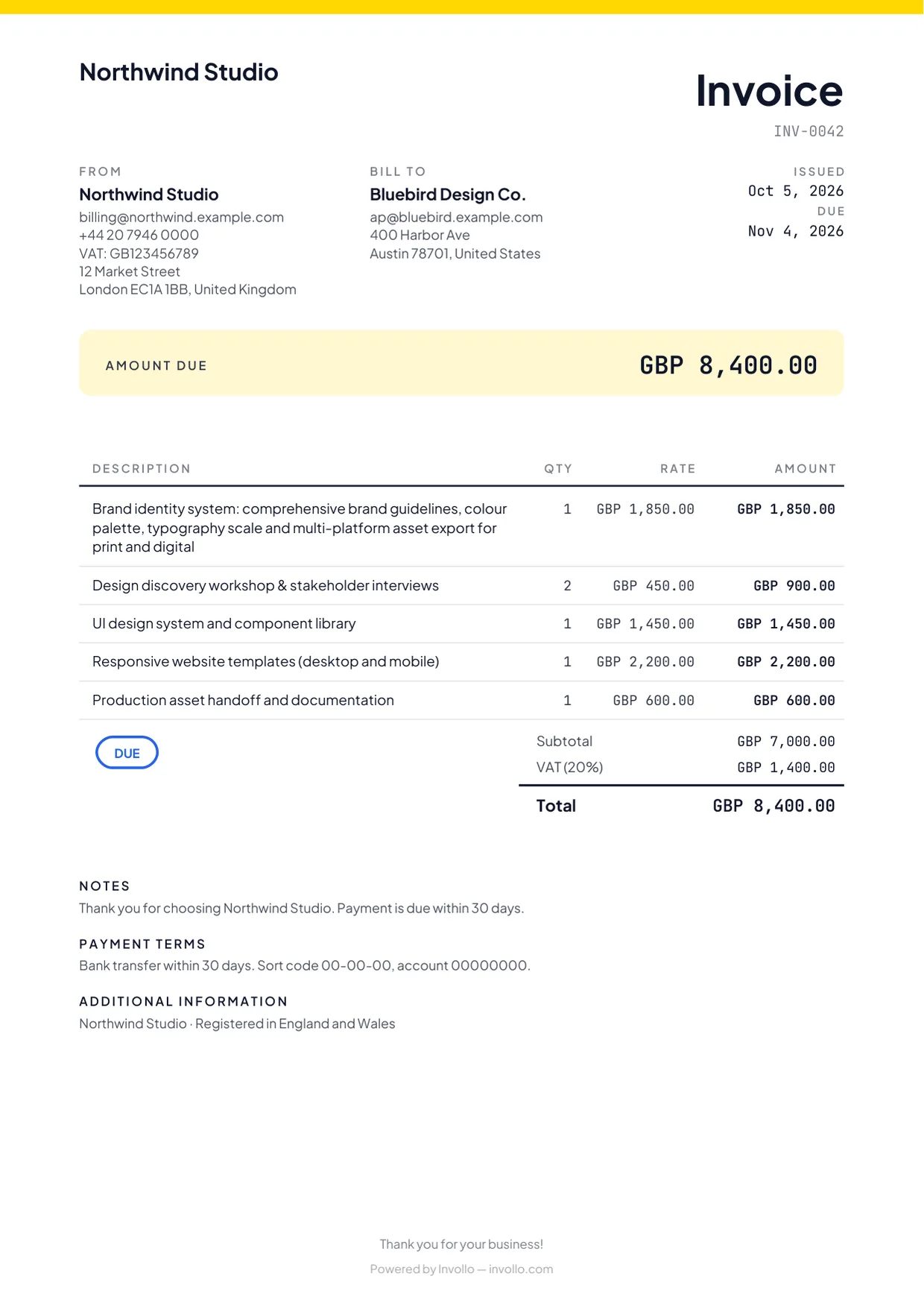
- The online invoice, the PDF and the email show How to pay with one row per method.
Passing a fee to your client
- Edit a payment method and turn on Client fee.
- Enter the fee as a percent and/or a fixed amount (for example 2.9 % + 0.30) and the name it shows under on the invoice (default Card fee).
- More options holds an optional minimum and maximum and how the fee is worked out: Exact (default) means you receive the full invoice amount after the provider takes its fee; Simple is the percent of the invoice plus the fixed amount.
- Check the example, tick I'm allowed to charge this fee where my clients are, and save.
- The invoice total stays the same. Each method in How to pay shows the amount including its fee.
- If the invoice offers one method only, the fee also shows as a line under the totals.
- Stripe and PayPal charge the fee together with the invoice; the receipt shows Invoice payment + fee.
- For transfers, Record Payment splits the fee out when you choose the method under Received with.
- Turn off Add payment fees on an invoice to charge no fee on it. Refunds return the fee in proportion.
- Reports show Fees collected under Net Revenue.
Related Guides
Adding bank transfer and wire payment details
Show your bank receiving details, such as account number, IBAN, or SWIFT/BIC, to clients on the online invoice page.
Connecting Stripe to accept credit and debit cards
Add your Stripe keys and webhook secret to accept card payments directly into your own Stripe account with 0% Invollo fee.
Connecting PayPal for client checkout
Add your PayPal Client ID and Client Secret to accept payments in 24 currencies with 0% Invollo fee.
Ready to streamline your invoicing?
Start on Invollo’s free plan with no credit card required. Manage invoices, time tracking, and client billing in one place.