Getting PaidUpdated October 5, 2026
Connecting Stripe to accept credit and debit cards
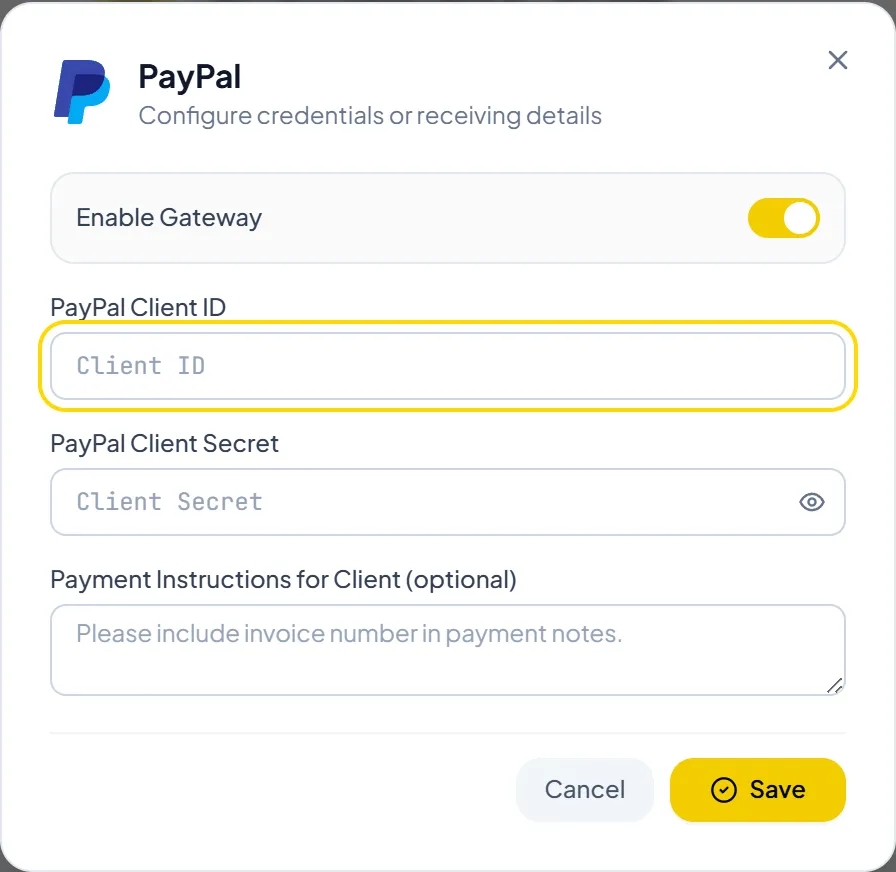
Add your Stripe keys and webhook secret to accept card payments directly into your own Stripe account with 0% Invollo fee.
Connecting your own Stripe account lets clients pay your invoices by credit or debit card. Card availability per currency depends on your Stripe account.
How to connect Stripe
- Go to Settings and select the Payment Gateways tab.
- Open the Add Payment Method... menu and choose Stripe.
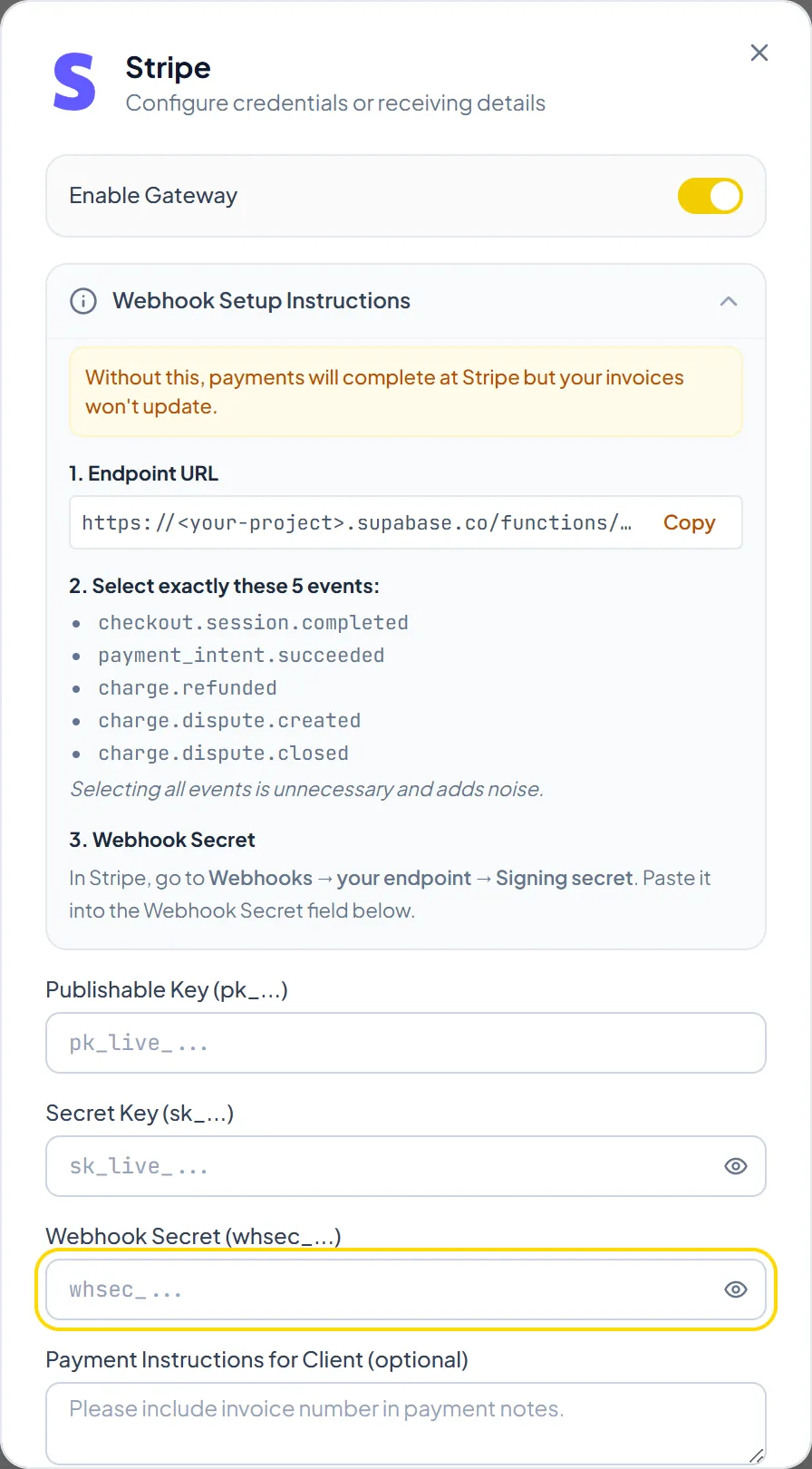
- Enter your Publishable Key and Secret Key from your Stripe Dashboard (Developers > API keys).
- Open Webhook Setup Instructions. In Stripe, create a webhook endpoint with the Endpoint URL shown there and select exactly the 5 events listed.
- Copy the endpoint's signing secret (it starts with whsec_) and paste it into the Webhook Secret field. Without it, payments complete at Stripe but your invoices don't update.
- Turn on the Enable Gateway toggle and click Save.
Important NoteYour secret key and webhook secret are encrypted in Supabase Vault. Invollo never holds client funds and takes 0% of your client payments.
Was this guide missing something or do you need further clarification?Contact Support
Related Guides
Connecting PayPal for client checkout
Add your PayPal Client ID and Client Secret to accept payments in 24 currencies with 0% Invollo fee.
Read guide
How client payouts work with 0% platform fees
Understand direct payouts: client payments go straight to your own Stripe or PayPal account with no Invollo cut.
Read guide
Adding bank transfer and wire payment details
Show your bank receiving details, such as account number, IBAN, or SWIFT/BIC, to clients on the online invoice page.
Read guide
Ready to streamline your invoicing?
Start on Invollo’s free plan with no credit card required. Manage invoices, time tracking, and client billing in one place.
Free forever plan · No credit card required · 0% of your client payments