The most reliable way to bill every hour you work is to track time while you work, with a timer that is always one click away, and to review the entries before they go on an invoice. Agencies need two more things: shared rules about what counts as billable, and, if you use screenshots as proof of work, a written agreement about when they're taken and who sees them. This guide sets out a routine for both, and shows where a desktop tracker helps and where it doesn't.
- Track as you go: time reconstructed from memory at the end of the week usually misses short calls, quick fixes and context switches.
- Decide what's billable up front, in the contract, including how you round time.
- Pick the tool by where you work: a web timer or browser extension for browser work, a desktop tracker when you work across several applications.
- Screenshots need consent and limits: tell everyone involved, agree the interval and who can see them, and turn them off when they aren't needed.
- Review weekly, invoice from the log: tracked hours should become invoice lines without retyping.
Decide what you'll track before you start the timer
Most billing disputes about time start before any time is tracked: the client and the freelancer had different ideas of what counts. Settle these points in the contract or quote:
- Billable work: the work itself, plus anything else you'll charge for, such as client calls, revisions, research, travel or project management.
- Non-billable work: what you'll track but not charge, such as sales calls, internal admin, learning and fixing your own mistakes.
- Rounding: whether you bill exact minutes or round, for example to the nearest 6 or 15 minutes, and whether rounding happens per entry or per day. Exact time is the easiest to defend.
- Caps and estimates: whether there's a weekly cap, and whether you must ask before going over an estimate.
- Proof of work: what the client gets with each invoice: a list of entries with descriptions, a work diary, screenshots, or nothing beyond the total.
Track non-billable time as well. It doesn't go on invoices, but it tells you what your work really costs. If you bill 30 hours at USD 50 an hour in a week and spend another 10 hours on admin and sales, you earned USD 1,500 for 40 hours of work: an effective rate of USD 37.50 an hour. That number is what you need when you set prices.
Timer, timesheet or desktop tracker: which fits
Each way of tracking time suits a different kind of work, and many people use more than one.
| Method | Strengths | Weaknesses | Best for |
|---|---|---|---|
| Manual timesheet | No software habit needed; easy to correct | Relies on memory; small tasks disappear | Long, predictable blocks of work |
| Web timer | Works on any computer with a browser | You have to keep the app open and remember to switch tasks | Occasional tracking, shared computers |
| Browser extension | Start and stop from the toolbar, without opening the app | Only where the browser is; easy to forget during desktop work | Work that happens mostly in the browser |
| Desktop tracker | Runs outside the browser and keeps going whichever application you use; can collect proof of work | Needs installing; screenshots raise privacy questions | Design, development, video and other work across several applications |
A daily routine that catches more billable time
Tools help, but habits decide how much time you actually capture. A routine that works for many freelancers:
- Start the timer when you start the task, not when you remember. Keep the timer where you'll see it: the system tray, the browser toolbar or a pinned tab.
- Write a description a client would understand, such as "Homepage hero: three layout options", not "design". Good descriptions answer most invoice questions before they're asked.
- Switch entries when the client or project changes. One long entry that covers two clients is hard to split later.
- Log interruptions straight away. If a client calls while no timer is running, add a manual entry as soon as you hang up.
- Do a five-minute review at the end of the day. Fix forgotten stops, fill gaps and mark each entry billable or not.
- Do a weekly review before invoicing. Compare hours with estimates and tell the client early if a task is running over.
Screenshots and proof of work: when they help, and when they don't
Hourly clients pay for time they can't see. Some marketplaces and agencies use periodic screenshots as proof of work, and some clients ask for them. They can settle disputes, but they also capture whatever is on the screen, so they need clear rules.
How screenshots work in Invollo's desktop tracker
Invollo's desktop tracker for Windows 10 and 11 can take periodic screenshots. Plainly:
- Screenshots are switched on per tracking session. While a timer is running with screenshots on, the tracker captures your full screen, whatever application is open.
- The workspace sets the interval: every 3, 5, 10 or 15 minutes, with 5 as the default.
- Screenshots are uploaded to the workspace's private storage. The workspace can review them and, if the workspace allows it, the client can see them in the work diary in their client portal.
- If you track time in someone else's workspace, they set these rules. Close anything private while the timer runs.
Agree the rules in writing
Before you turn screenshots on, write down a short policy and share it with everyone it affects: your client, and any team members or contractors who will track time. It should cover:
- When screenshots are taken (only while a timer is running, and on which projects).
- The interval, and whether the full screen is captured.
- Who can see the screenshots: the workspace owner, admins, the client.
- How long they're kept and how someone can ask for one to be removed.
- What people should do to protect private information, such as closing personal email and messaging apps while tracking.
If you employ or engage people in the UK, the Information Commissioner's Office has guidance on monitoring workers under UK data protection law; it covers telling workers about monitoring and keeping it proportionate. Other countries have their own rules, so take advice if you're unsure.
When to leave screenshots off
- Fixed-price work: the client is paying for the result, not the hours.
- Sensitive information on screen: health, financial or personal data, or work under a strict confidentiality agreement.
- When nobody needs them: if the client is happy with entry descriptions and a weekly summary, screenshots add risk without adding value.
For agencies: tracking time across a team
An agency has the same problems as a freelancer, multiplied by the number of people. A few practices make team time usable:
- One project per client engagement, with the rate set on the project, so nobody has to remember rates.
- Shared description rules, so a client reading a combined invoice sees consistent entries.
- A weekly cut-off, after which time is reviewed by the account lead before invoicing.
- Estimate versus actual reviews at the end of each project. They are the best data you have for pricing the next one, and for deciding when to move a client to a fixed price.
In Invollo, the Free and Pro plans are for one person; the Business plan adds team seats with roles (Owner, Admin and Member) so several people can track time in one workspace. The pricing page has the details, and Invollo for agencies shows how the client portal and approvals fit in.
From tracked hours to an invoice
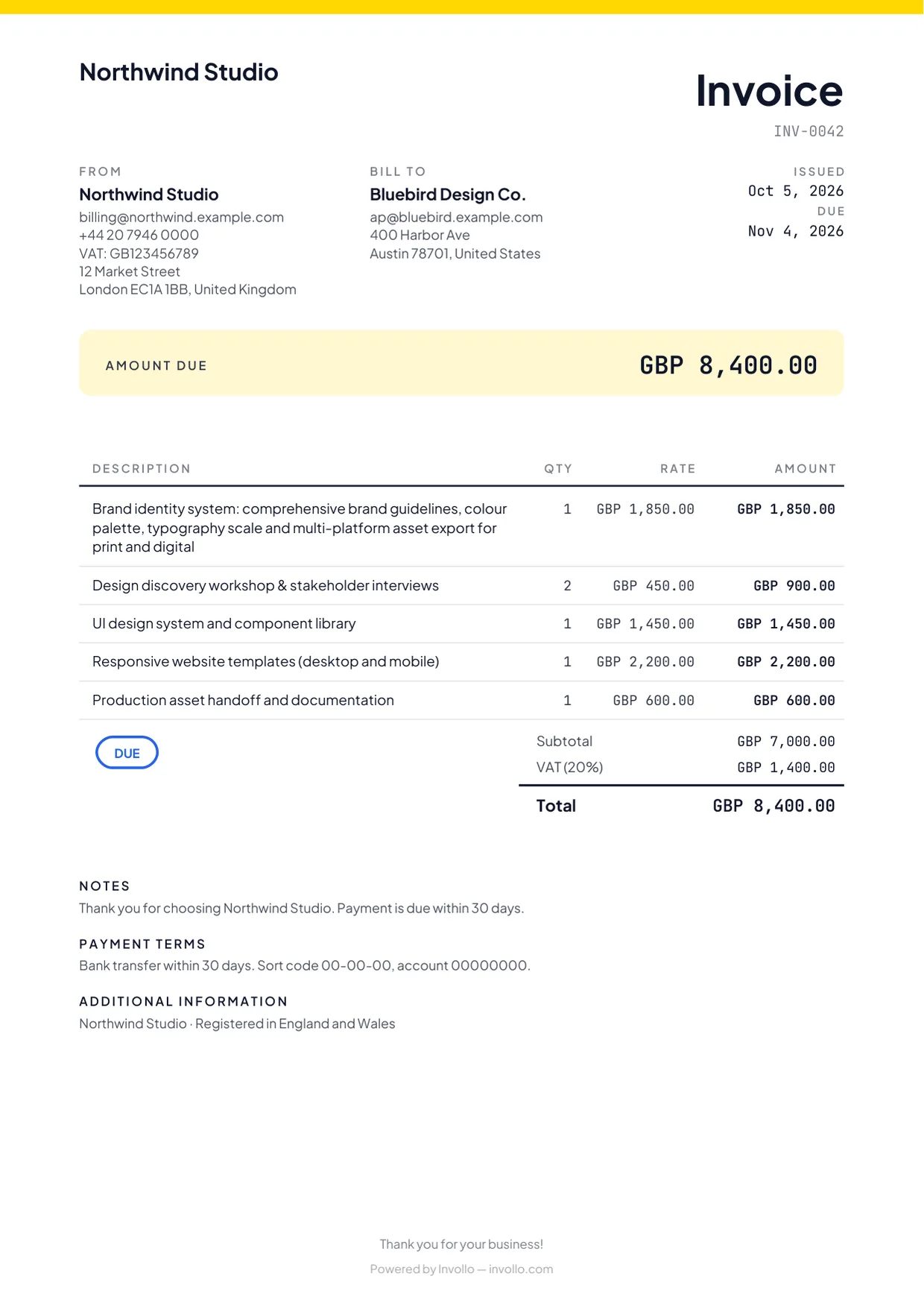
Time tracking only pays off when the hours reach an invoice accurately. Whatever tool you use, the invoice should show enough detail to match the log: the period, the hours and the rate, with entry descriptions available if the client asks.
In Invollo, tracked time from the web timer, the Chrome extension and the Windows desktop tracker lands in one workspace. When you create an invoice, you add the client's unbilled time, and each entry becomes a line in decimal hours multiplied by your rate; you can edit the lines before sending. The client gets a payment link and pays through your own Stripe or PayPal account, and Invollo takes 0% of client payments. For clients abroad, our guide to international invoicing covers currencies, VAT and payment methods.
What the numbers can tell you
After a month or two of honest tracking, look at the log for patterns rather than totals:
- Estimates: which kinds of task you consistently underestimate.
- Scope creep: clients whose "small changes" add up to hours you didn't quote.
- Effective rate by client: some clients pay well per billed hour but need many unbilled hours of calls and revisions.
- Your best hours: when you do your most focused work, so you can protect that time.
Getting started with Invollo's tracker
- The desktop tracker is available for Windows 10 and 11.
- Time tracking, including the desktop tracker, is available on the free plan.
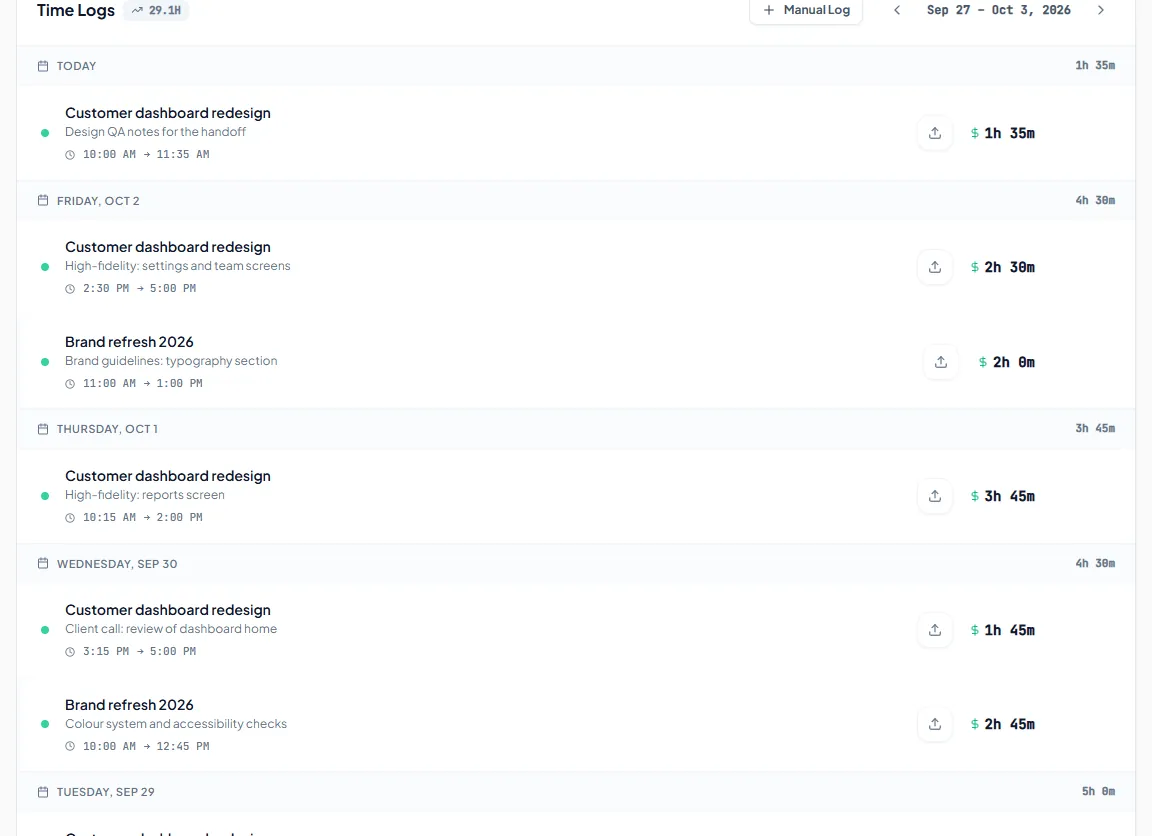
- Entries sync with the web app, where you can review them in the work diary together with any screenshots, then invoice them. Invollo for remote work explains how clients see that work.
Sources
- Information Commissioner's Office, Employment practices and data protection: monitoring workers (checked 3 October 2026)