AI AssistantUpdated October 5, 2026
Connecting your OpenAI, Anthropic, Gemini, or Groq API key
Bring your own API key to power the AI assistant on any plan with zero markup.
Invollo includes an AI assistant on every plan, including Free. You bring your own API key; your provider bills your usage and Invollo adds no markup.
How to connect your key
- Navigate to Settings and select Invollo AI.
- Turn on Enable Invollo AI.
- Click Add provider and choose a provider: Anthropic, OpenAI, Google Gemini, Groq LPU, OpenRouter Free, or Zhipu AI (GLM).
- Paste your provider key into the API key field and pick a model.
- Click Save AI settings. Each provider key is tested when you save.
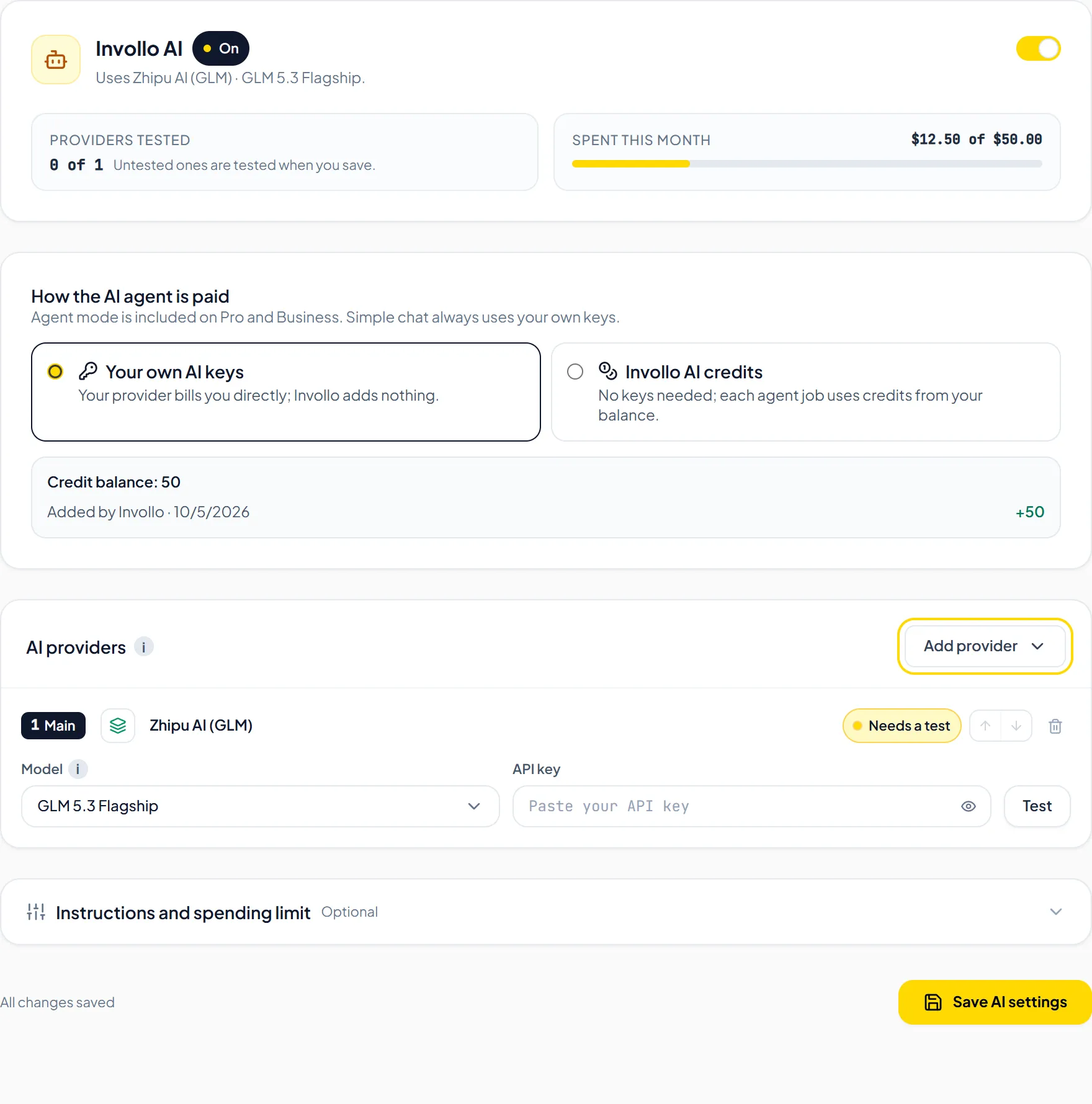
Helpful TipYou can add more than one provider. Invollo AI uses the first one, and the next takes over if it is busy or down. You can also set a Monthly limit (USD).
Important NoteYour API key is encrypted using Supabase Vault on our servers. Your conversations are saved in your workspace so you can reference past chat sessions.
Was this guide missing something or do you need further clarification?Contact Support
Related Guides
Using the AI assistant to draft invoices and quotes
Use plain language to draft invoices and quotes, follow up on overdue invoices, and check time and expenses.
Read guide
Managing password and account security
Password requirements, changing your login password in Settings > Security, and closing your account.
Read guide
Navigating your dashboard and key metrics
Understand monthly revenue, net income, outstanding balances, hours tracked, and quick actions on the dashboard.
Read guide
Ready to streamline your invoicing?
Start on Invollo’s free plan with no credit card required. Manage invoices, time tracking, and client billing in one place.
Free forever plan · No credit card required · 0% of your client payments